Rename Multiple Photos on iPhone Using the Date Taken
Want to batch rename photo files on your iPhone or iPad using the date they were taken? FileBrowser Professional and FileBrowserGO can rename multiple image files using the date stored in their EXIF data. This works with photos stored on accessible file locations such as a NAS, computer, USB drive or cloud storage — not photos in the iOS Photos library.
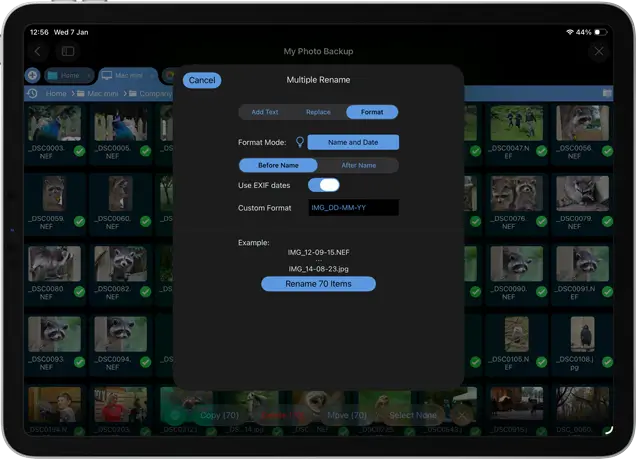
How to Rename Multiple Photos on iPhone (NAS, Cloud & Computer Files)
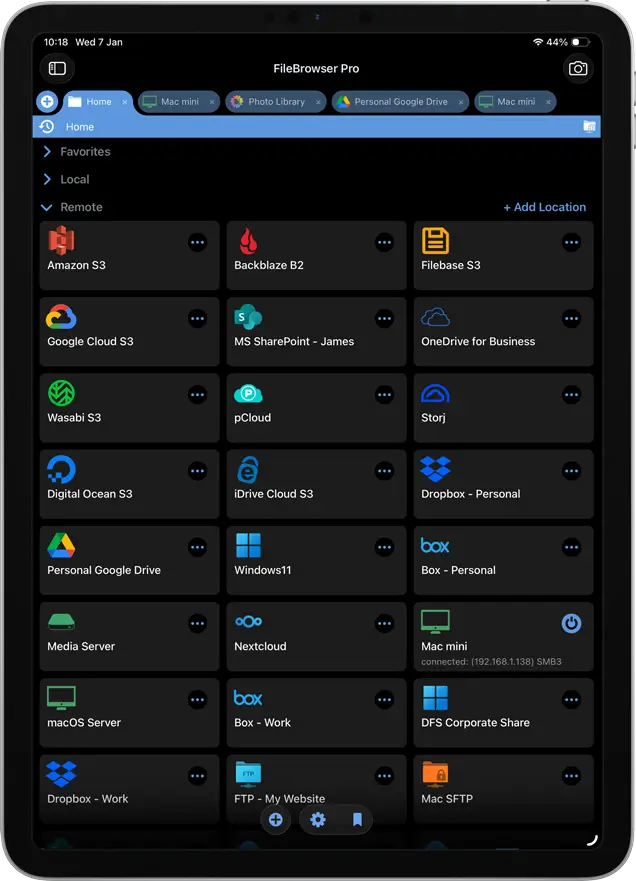
Step 1: Browse to Your Photo files (NAS, Cloud or Computer)
Navigate to your photo folder using FileBrowser Professional, which could be on a USB drive, your computer or your cloud storage.
 Please note you cannot rename the photos directly in the iPad/iPhone Camera Roll. This is an Apple restriction.
If you would like to try this for free, download FileBrowserGO for a limited trial.

Purchase the full version of FileBrowser Professional.
Step 2: Select All Photos You Want to Rename
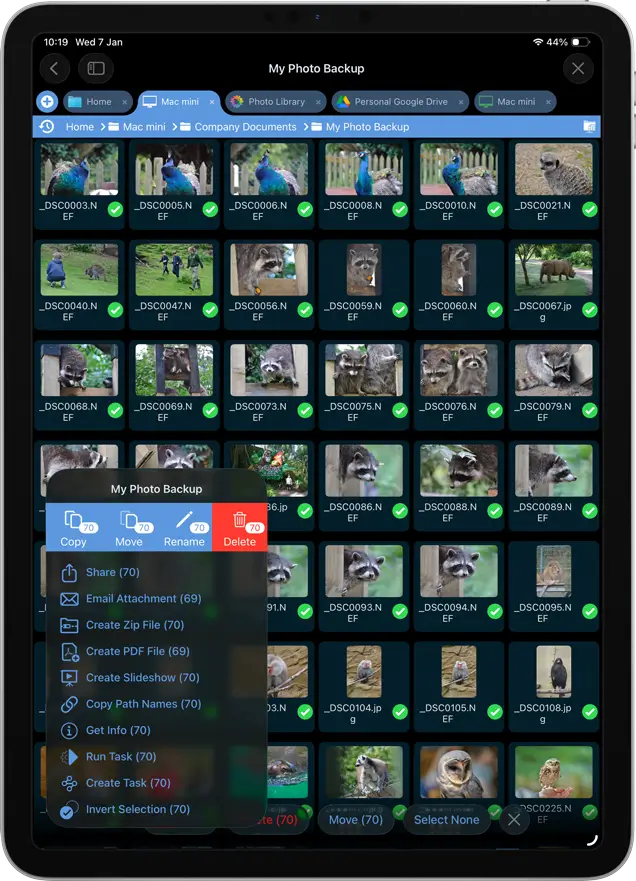
Tap and hold a photo to enter multi select mode and select all the photo files you want to rename.
Once all your files are selected, tap the context menu in the bottom left corner and select “Rename”.
Step 3: Set Up Automatic Naming Using Date Taken
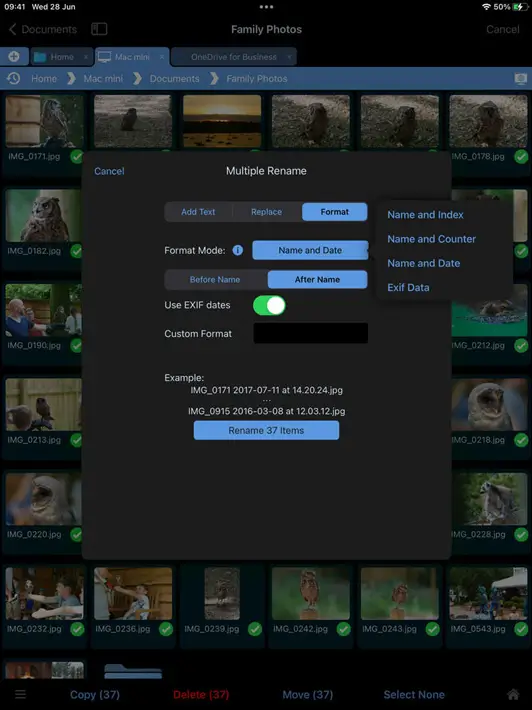
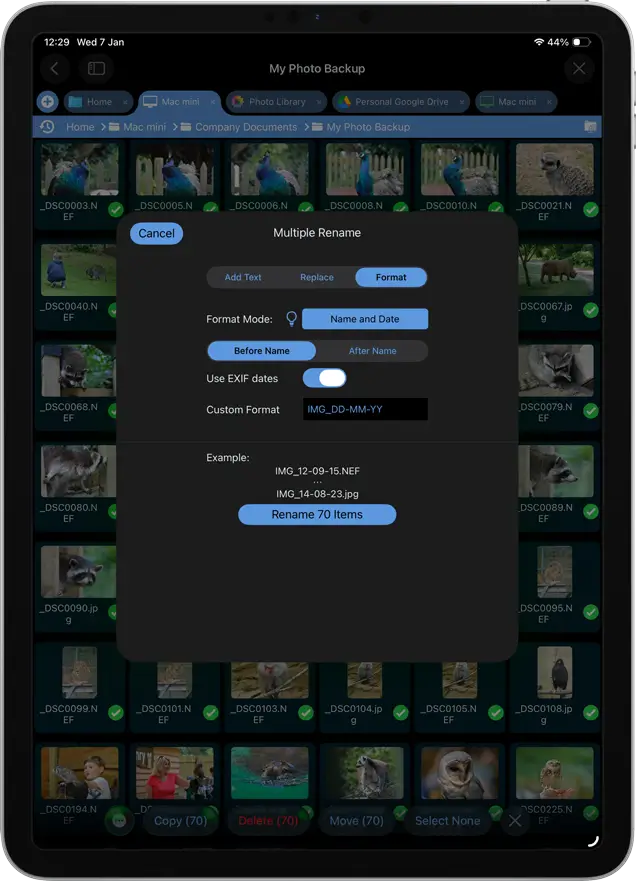
Then select “Format” in the Dialog that appears.
Change the Format mode to “Name and Date”.
Toggle on the “Use EXIF dates”.
You can also choose to have the date before or after the name here.
Step 4: Preview and Batch Rename Your Files
You can change the date format by using the "Custom Format" input. Enter DD MM or YYYY in any order you wish. You can also prepend the file with a name for example "IMG_DD-MM-YY".
You will see an example of the filenames shown at the bottom of the dialog.
Tap the “Rename (X) items” button and that's it.


FAQ
-
Can I rename photos in the iPhone Camera Roll?
No — iOS doesn’t allow you to rename photos directly in the Photos app. However, you can rename photos stored on a NAS, computer, USB drive, or cloud storage using FileBrowser Professional.
-
Can I batch rename photo files using the date they were taken?
Yes, choose Format/Name and Date on the rename dialog (and also 'Use EXIF dates' if you are using FileBrowser Professional or FileBrowserGO). Select to add the date before or after the filename or customise using the EXIF data mode. Due to an iOS limitation photos cannot be renamed in the iOS camera roll.
Only available in FileBrowser Professional and FileBrowserGO.
-
Can I batch rename photo files on iPhone or iPad?
Yes — with FileBrowser Professional you can rename multiple photos at once. Simply select your files, choose a naming format, and apply changes in a single step.
-
Can I batch rename documents adding a counter or index to the filename on iOS?
Yes, use FileBrowser's powerful bulk rename options to add a counter or index to the start or end of your filenames.
Download Now


