Rename Multiple Files on iOS Using Find and Replace
Updating filenames on iOS can be time-consuming, especially if you have dozens or hundreds of files. With FileBrowser Professional, you can find and replace text in multiple filenames at once on your iPhone or iPad, saving time and keeping your files organized. Whether you need to rename photos, documents, or project files, FileBrowser Professional makes bulk renaming simple and flexible.
How to Find & Replace Text in Multiple Filenames
Step 1: Open FileBrowser and Select Your Files
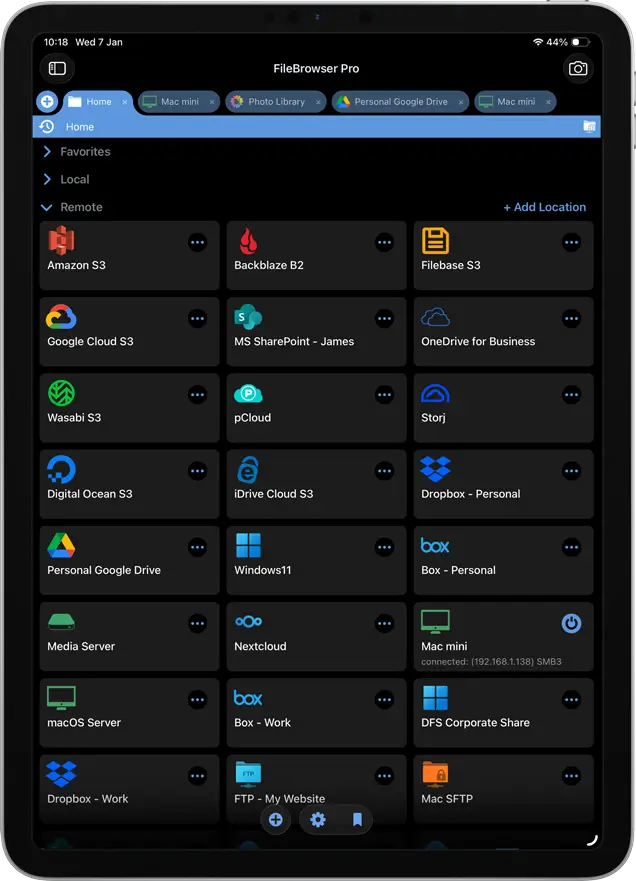
Navigate to the folder containing the files you want to rename. Using FileBrowser Professional, which could be on a USB drive, your computer or your cloud storage.
 Please note you cannot rename the photos directly in the iPad/iPhone Camera Roll.
If you would like to try this for free, download FileBrowserGO for a limited trial.

Purchase the full version of FileBrowser Professional
Step 2: Choose the Bulk Rename Option
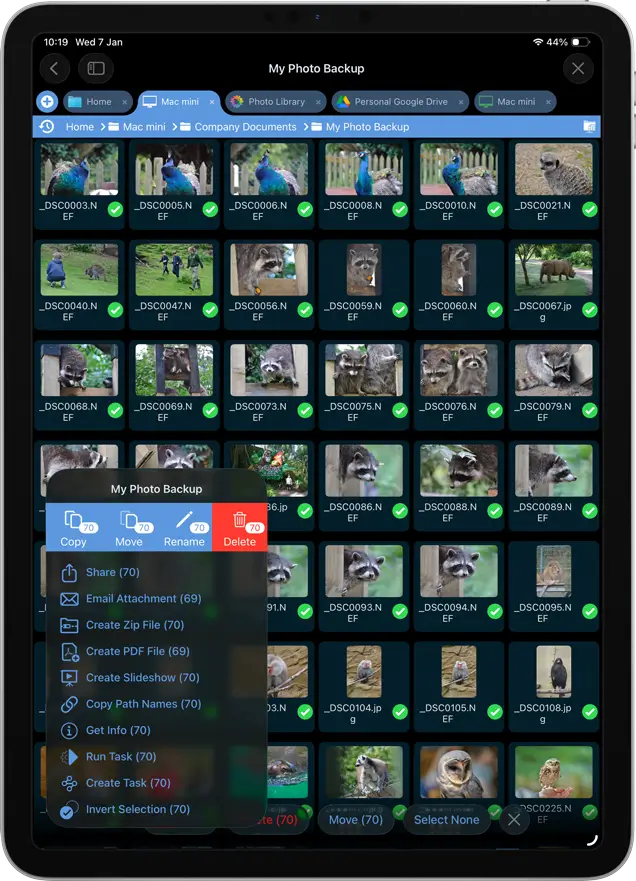
Tap and hold to enter multi select mode and select all the photos you want to rename. Once all your files are selected tap the context menu in the bottom left corner and select “Rename”.
Step 3: Enter the Text to Find and Replace
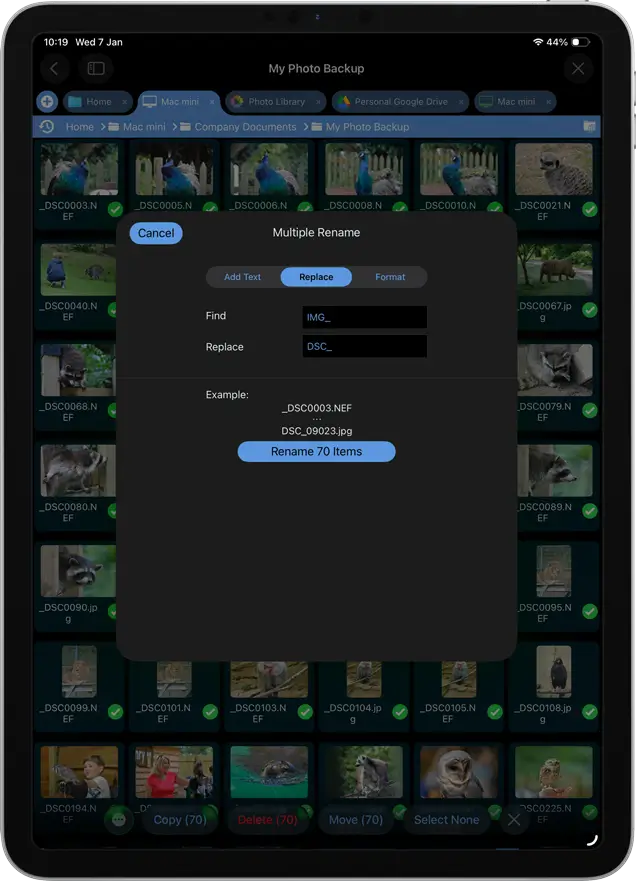
Then select 'Replace' in the Dialog that appears. For this example let's replace the following text in the file name “IMG_” and replace is with “DSC_”. You can see an example of how your filenames will look after the rename.
Tap the “Rename (X) items” button and that's it.
Another example: changing a project name
- ClientA_Report.pdf
- ClientA_Photos.zip
- ClientA_Presentation.pptx
Find: 'ClientA' and replace with: 'ClientB':
- ClientB_Report.pdf
- ClientB_Photos.zip
- ClientB_Presentation.pptx


FAQ
-
Can I find and replace text in filenames on iPhone or iPad?
Yes! Using FileBrowser Professional, you can quickly find and replace text in multiple filenames at once, making bulk renaming simple and efficient.
-
How do I rename multiple files at once on iOS?
Select the files in FileBrowser Professional, tap Actions → Rename → Find & Replace, enter the text to replace, and apply. You can rename dozens or even hundreds of files in a single operation.
-
Can I add dates or counters to filenames when renaming?
Yes — FileBrowser lets you automatically add counters, timestamps, or custom prefixes and suffixes to filenames while performing bulk renames.
-
What types of files can I rename on iOS?
FileBrowser supports renaming photos, videos, documents, PDFs, and other file types stored locally or in cloud services connected to the app.
Download Now


