How to Share Windows 11 Folders and Access Them from Your iPad
Need to access Windows 11 folders from your iPad? This guide shows you how to share folders on Windows 11 and connect to them from your iPad in a few simple steps.
Check that File Sharing is Enabled on Windows 11
Windows 11 File Sharing may not be enabled, especially if you don't have other computers on your network or this is the first time you have tried to access shared folders over your network.
Use the following steps to enable File Sharing on Windows 11.
-
Step 1
Press the Windows key and type 'control panel" select the Control Panel App from the listing.

-
Step 2
Click "Network and Internet"

-
Step 3
Click the 'Network and Sharing Centre' header in this dialog.

-
Step 4
Click "Change advanced settings" in the left hand side.

-
Step 5
Under the "Private (Current Profile)" section:
Enable "Turn on network discovery".
Enable "Turn on file and printer sharing".

-
Step 6
Expand the "All Networks" section, enable "Turn on password protected sharing".

We recommend using password protected sharing, but if you want people with no username or password to be able to access your files (only those files marked for 'Everyone' access), then set password protected sharing to "off".
Download FileBrowser to access all your files from your iPad / iPhone
FileBrowserGO - Free Trial

FileBrowser
How to share a folder in Windows 11
- In Windows File Explorer find the folder you wish to share right-click it and choose "Show more options" then select "Properties"

-
In the Folder Properties dialog select the "Sharing" tab.
Click the "Advanced Sharing..." button.

-
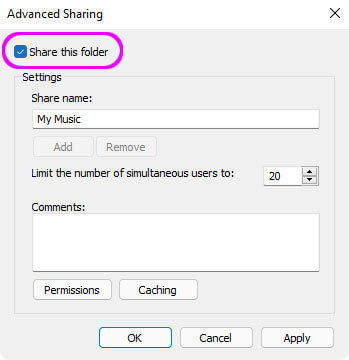
Tick "Share this folder" -
Enter a Share Name that this folder will be known by on the network.
By default, the folder will be shared for read-only access for the user who creates the share.
If you wish to change this security, click the "Permissions" button and choose the level of access that you require.
The following dialog should appear.
Username
To find which username to use in FileBrowser see this page.
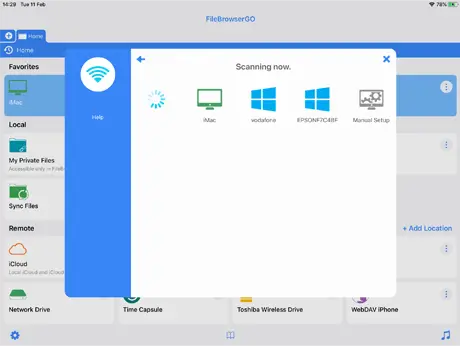
Scan your Network
In FileBrowser follow these steps:
- From the home screen.
- Tap "Add Location" to the right of the "Remote" Section.
- Tap "Computer / Network Drive" this will start a scan of your local network.
- Select your computer from the list.
- Enter your credentials and tap 'Save'.
-
Please select from the options below:
Computers or Servers
Cloud Providers

Unsure which version of FileBrowser is for you? Check out our comparison page.