Windows 10 Firewall Configuration for Network Sharing (SMB / File Sharing)
When connecting to a Windows 10 PC over the network, SMB file sharing relies on specific Windows Firewall rules being enabled. If these rules are not configured correctly, the computer may appear reachable but shared folders may not be accessible.
Windows Firewall controls whether incoming SMB traffic (used for file and printer sharing) is allowed or blocked on the network. In most cases, ensuring the correct “File and Printer Sharing” rules are enabled resolves connectivity issues at this layer.
-
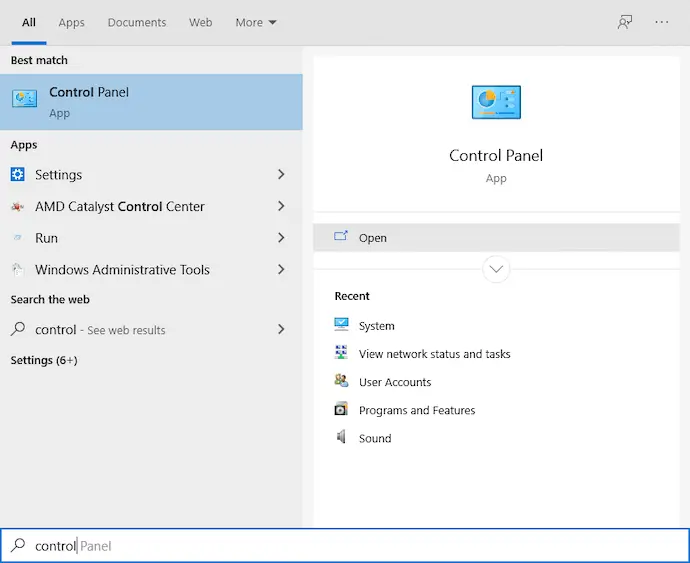
Press the Windows key and type 'Control" select the Control Panel App from the listing.
-
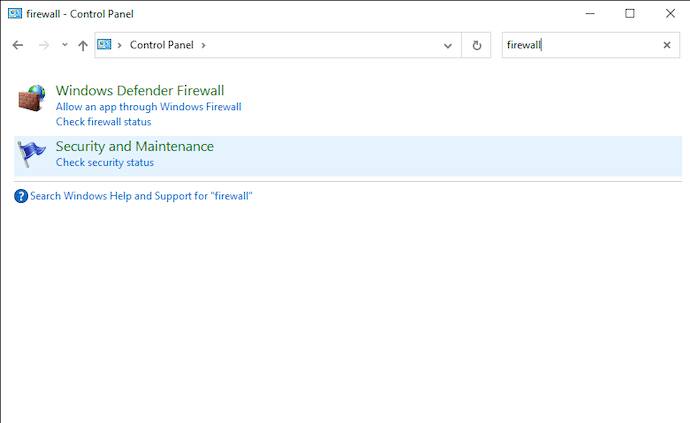
Now search for 'Firewall" in the top right and click "Allow an app through Windows Firewall."
-
You should now see the following screen.
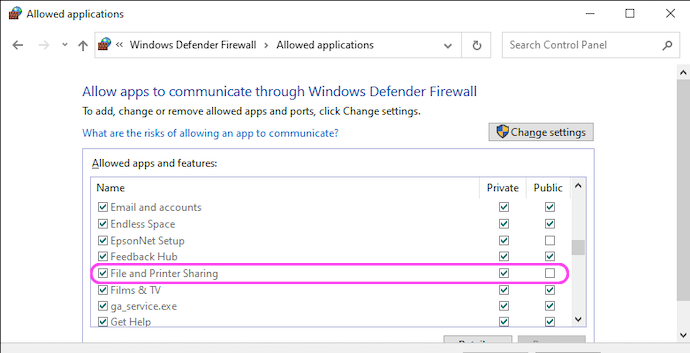
Scroll down the list and ensure that "File and Printer Sharing" "Private" is ticked.
If you are not using Windows Firewall but are using a third party product such as ZoneAlarm or Norton Internet Security then a similar exception will be necessary. Please try disabling your firewall temporarily to see if this is the problem.
Options
I have a different version of Windows
- How to configure Windows 7 Firewall for network sharing
- How to configure Windows Vista Firewall for network sharing
- How to configure Windows XP Firewall for network sharing
About FileBrowser
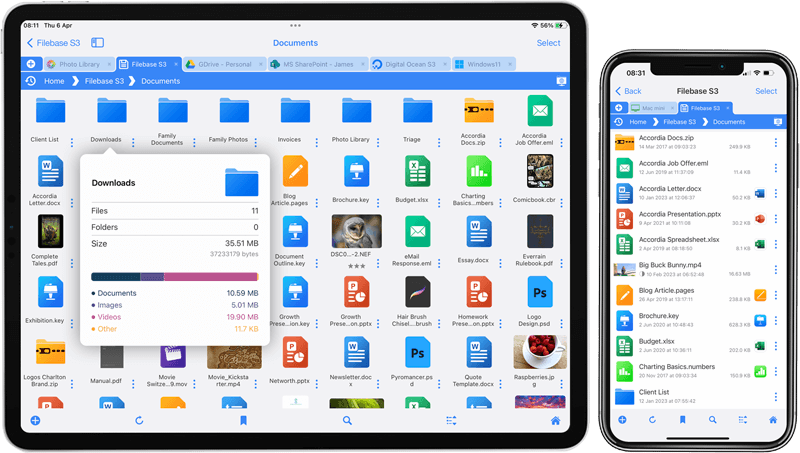
FileBrowser provides reliable access to files stored on Windows PCs, NAS drives, and other network storage devices directly from iPhone and iPad.
Whether you are connecting on a home network, office network, or VPN connection, FileBrowser is designed for fast and secure access to Windows shared folders, SMB network drives, and file servers.
Download FileBrowser
Access files on your Windows PC, network shares, and NAS drives directly from iPhone and iPad.


Unsure which version of FileBrowser is for you? Check out our comparison page.