User Guide Full Index
General
- Connect to
- Tabs
- Split View
- Search
- Drag and Drop
- Multi File Select Mode
- Bulk Renaming
- ePub Viewer
- Import Files
- Export Files
- Copy Large files with a USB cable
Menus
Sharing
- Copy from iPad to iPad
- AirDrop
- WebDAV Server
- Files App Integration
- Share Mobi Files to the Kindle App
USB Drives
Bookmarks
History
Sync and Backup
Working with documents
Folder View Options
Security
Image Viewing
- Slideshow
- Chromecast images to your HDTV
- Airplay images to your HDTV
- XMP Review
- Backup your Camera roll
- Bulk rename your Photos
Movie Viewing
Music Playing
- Play modes
- Queue tracks
- Edit track order
- Podcasts and Audiobooks
- Airplay your music files
- Chromecast your music files
- Stream your music to Amazon Alexa
QR and Barcodes
Advanced
FileBrowser UserGuide
Connect to:
Simply Tap "Add Location" on the home screen and follow the setup.
If you are having difficulty connecting click one of the links below to see our step by step instructions on how to get connected:





Connect to your Storage

SMB 1, 2


Digital Ocean





OneDrive for Business

Sharepoint
Favorites
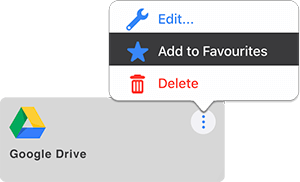
Add your Favorite files, folder or server locations to the top of the Home Screen, speeding up your workflow. Drag Favorites to re-order them.
Tabs

Easily switch between Tabs to speed up your workflow. Simply copy files from one tab to another.
Create a new Tab by tapping the "+" icon next to the first Tab and navigate to any of your storage locations.
You can even drag and drop files between your open Tabs.
Recent
Tap the Recent icon which displays folders that you have recently interacted with.

Split View
To create the split view drag a Tab to the far right of the screen. Now you have 2 instances of FileBrowser, and can easily browse and drag and drop files between them.

Drag and Drop
Single File Drag Drop
Press and hold a file, then drag the file into either another windows or tab.
Multi File Drag Drop
Tap "Select" in the top right corner, now you are in multi-selection mode and can select many files and folders. Double tap to select a range of files. Then drag one of the selected files into either a new window or tab. See the Multi-select section.
If you drag files to somewhere on the same location you will move the files.
If you drag files to another location the files will be copied.

Folder View Options
FileBrowser remembers the View mode, Sort order and even Zoom level, per folder. Perfect for Photos or Files.
List
Single column showing file details.
Grid
Grid of icons or image thumbnails.
Columns
Two or three columns showing file details.
Gallery
Large preview, with menu off to the side.
In Grid and List view use pinch to zoom the thumbnails, this can also be done via the slider in the sort menu.
Sort
Sort by one of the options below in either ascending or descending order, you can also sort by folders first.
- Sort by Name
- Sort Folders First
- Sort by Date
- Sort by Size
- Sort by Type
- Sort by Rating

File Actions Menu
This can be accessed via the file actions menu to the right of your files.
Get Folder Info
This displays a popup showing a summary of file & folder size and content categories.
View / Print
This views files using an alternate viewer. Tapping the share button in this mode allows you to print your document.
Markup
This opens files using the annotator viewer. Tapping the share button in this mode allows you to print your document.
Edit In Place
Open a file into another editing app, your changes will be saved back to its location.
How to edit documents from FileBrowser
Open as Text
Open the file and treat it as containing only text.
Copy
Copy a file.
Move
Move a file to selected folder.
Duplicate
Make a duplicate of the current file.
Rename
Rename the file or bulk rename multiple files.
Delete
Delete a file or folder.
Share
Share your file to another app, including via social media such as Facebook, Twitter, or iMessage etc.
Google Drive Share
If you have shared a folder from Google Drive you can manage that list here.
Export
Export a file to a folder of another app.
Export Folders into another appEmail Attachment
Attach a file to an Email.
Zip this Folder
Create a Zip file of the selected folder.
Create PDF
Convert an Image into a PDF file.
Queue Audio
Add a music track to the now playing list.
Queue to Chromecast
Queue a movie file to play on a Chromecast device.
Stream to Another App
Stream video files to a third party app such as VLC or GoodPlayer, or set your default streaming app from FileBrowser.
Create Slideshow
Create a slideshow from the selected folder.
Create a Sync Task
Setup a Sync Task to copy files and folders to your iPad / iPhone.
How to Sync Files on iPhone or iPad
Create a Backup Task
Setup a Backup Task to copy files or folders from one destination to another.
How to Backup files on iPhone or iPad
Run Task
Run a Custom Task on the current file. Find out more about Custom Tasks
Create a File / Folder Link
Create a UNC path link or a FileBrowser URL which can be used to launch FileBrowser in iOS.
Create file links that you can email or paste into a folder.
Add Voice Shortcut
Create a phrase to Bookmark a folder, and simply repeat this phase to Siri, FileBrowser will open, connect and navigate to your chosen folder.
Add to Favorites
Add the current folder to the favorites section on the homepage.

USB Drives
Simply plug in your USB drive and follow the instructions below:
From FileBrowser's Home screen tap "Add Location", then tap "USB/Files"
From here, tap "Select Location" and select your USB device from the iOS document picker.
You can add multiple USB drives and FileBrowser will remember them.

SanDisk iXpand Drive
An easy way to free up storage on your iPad / iPhone is to keep large files on a SanDisk iXpand drive. Simply plug it in and it will appear as another location in FileBrowser Professional.
*FileBrowser Professional feature
How to map a folder of another app
Map the folders of other apps such as FireFox's Download folder or PDF Viewer's folder as a location inFileBrowser for easy access and manipulation.
From FileBrowser's Home screen tap "Add Location", then tap "USB/Files"
From here, tap "Select Location" and expand the "On My iPad" section and browse into an app's folder. Tap "Done" here or browse into a sub-folder to add just that folder.

Export
Easily export your files to your iCloud Drive or another apps shared folder using the steps below:
Tap "Export" from the file menu icon and the iOS document picker will appear.
Select your iCloud Drive or another apps shared storage location to export the files to that location.
Browse your FileBrowser Locations on your Computer
Browse the files in FileBrowser and your cloud and network connections you have configured in FileBrowser directly from your Mac or PC using FileBrowser's WebDAV server.


Copy from iPad to iPad
Easily Transfer files from your iPad to another iPad or even an iPhone.
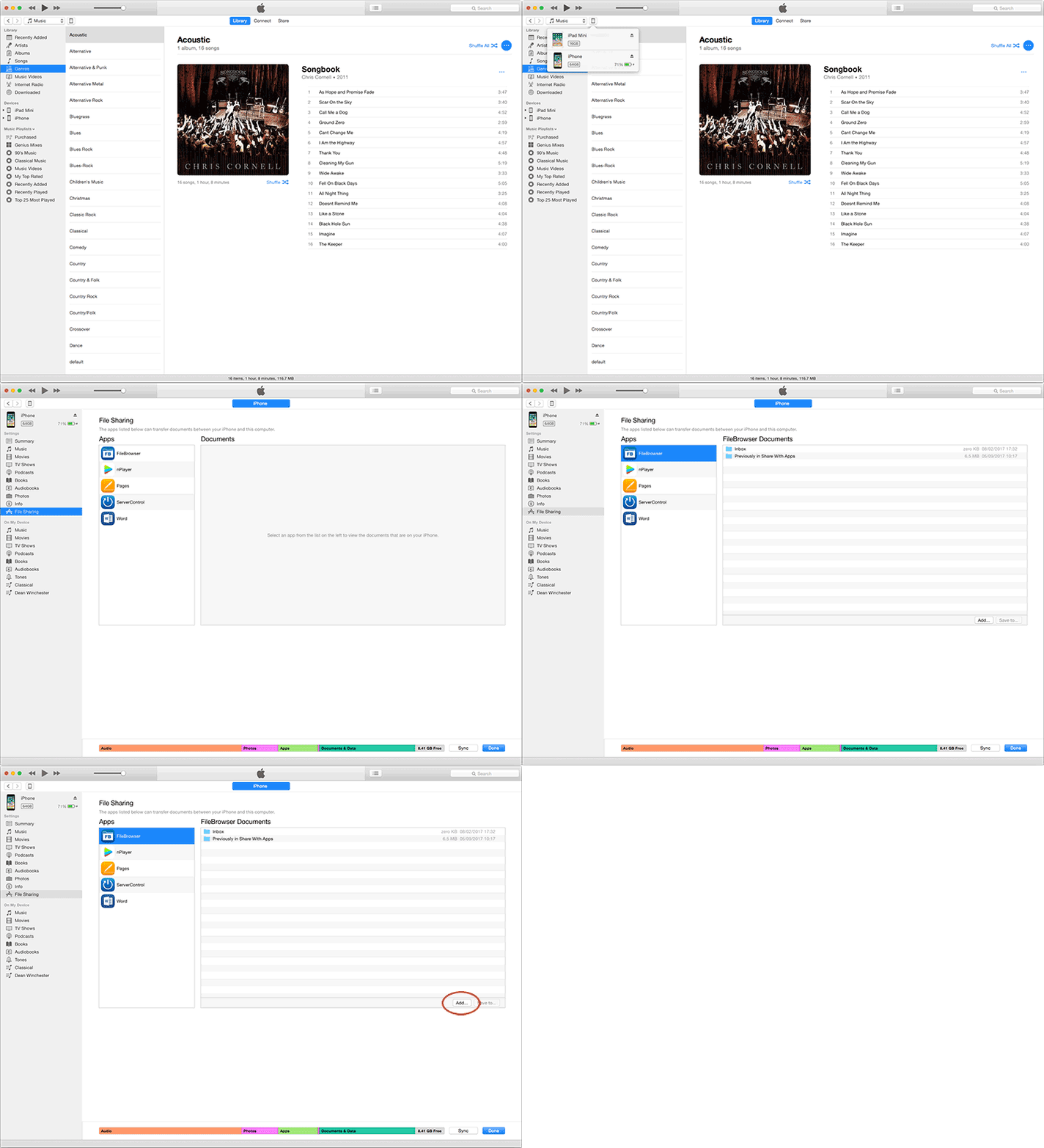
How to copy files or folders from one device to another
Multi File Select Mode
Step 1
Click the "Select" button on the top toolbar or press and hold a file or a folder to enter multi select mode.
Step 2
Then select the files and or folders you want.
You can also select groups of files by tapping the first file then double tapping the last file, all files in between become selected.Then tap copy or tap the toolbar to access more options such as Move, Delete, Share, Create Zip and Rename.
- Choose Copy/Move and go to step 3.
- Choose Delete (you will always be asked to confirm).
- Cancel multi-selection mode by tapping the "Cancel" button.
Step 3
Navigate to where you want your files or folders to be copied / moved and tap link in the top right corner "Paste X files here...".
Advanced Multiple File Selection on iPad Guide
Selecting Mulitple Images from the Image Viewer
Step 1
Tap to view an image fullscreen.
Step 2
Swipe left and right to navigate the images, tap the tick in the top toolbar on images you would like to select.
Step 3
Tap Done, all the images you selected are now shown.
Now use the context menu to select one of the many actions such as Copy / Move / Rename or Delete.
Editing Documents Made Easy
Your changes are saved back to the cloud or server
Browse your documents on servers or in the cloud with FileBrowser and within 2 taps you can be editing your documents in Word (Excel & Powerpoint too). When you exit, all your changes are saved back to the server or cloud.
How to Edit Documents from FileBrowser
Files App Integration
FileBrowser integrates with the iOS Files app, providing access to all your documents no matter whether they are in the cloud or on personal computers.
iOS Files app integrationePub Viewer
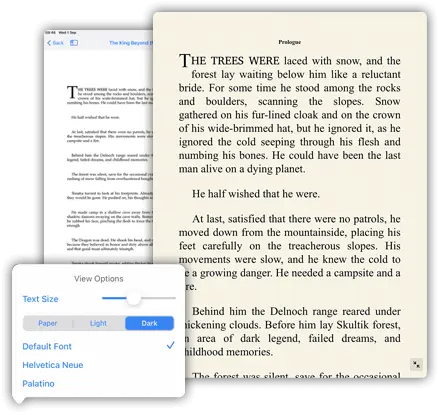
Easily read ePub files with FileBrowser, change the theme, font and font sizes, you can even bookmark your page.
- Tap the actions menu
- then select "View Options"
Share Mobi Files to the Kindle App
Transfer mobi books into the Kindle App from FileBrowser with ease:
- Tap the actions menu on the .mobi file
- Select "Share"
- Scroll the app icons to the right until you see the Kindle App, then select it
- Edit the title and author and tap "Send"
Bulk Rename Tools
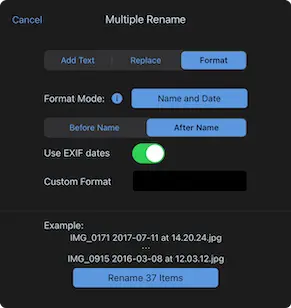
FileBrowser features advanced iOS bulk rename tools, just like you would find on a desktop.
Find and Replace Filenames
Replace text in filenames in bulk with our simple guide.
Rename using Date Taken Information
Rename Photos with the Date you took the photograph with our simple guide.
Rename using EXIF Properties
Add EXIF properties to your filename in bulk, such as ISO or Make and Model with our simple guide.
Add Text to Multiple Files
Add text to the beginning or end of multiple files with our simple guide.

Toolbar Actions Menu
Show Email
Show me the Email with all the Attachments I have added so far.
Paste
Paste to complete a copy or move action.
Rename Files
Rename the file or bulk rename multiple files.
Share Files
Share multiple files.
How to Share Multiple Files on iOSEmail Attachment
Attach multiple files to an email.
Create Zip File
Compress all files selected into a single zip file.
Create PDF File
Convert multiple images into a single PDF as a one page document or multi-page photo contact sheet.
Create Multi-page PDFs on iOSCreate a Folder
Create a Folder.
Create a Document
Create a new file in the current folder. New files include:
- Txt
- Word
- Excel
- Powerpoint
- Pages
- Numbers
- Keynote
Import
Import a file from another app's folder or Document Provider.
How to Import Files from Another AppDownload from URL
Download any file from the web. Just copy the URL and paste it into FileBrowser to save a local copy.
How to Download Files from the InternetPaste iOS Clipboard
Paste an image or text thats on the iOS Clipboard into a new file.
Import from Photo Library
Open your Photo Library select photos to import directly into the current folder.
Capture from Camera
Take a photo or Video and save it directly into the current folder.
Document Scanner Capture to PDF
Take a photo and save it as a PDF into the current folder. Perfect for expenses.
Set Quick Capture Folder
Set the current folder as the capture location when using the camera icon on the locations tab.
Record Audio
Record a voice Memo" to the current folder.
Create Slideshow
Create a slideshow from the images or folders selected.
Run Task
Run a Custom Task on the current folder or selection.
Create Task
Find out more about Custom Tasks
Search
Search Folders for Files
Navigate to the location or folder you want to search, then tap the search icon on the bottom toolbar.
Type in the box at the top of the screen.
Tap search on the keyboard and you will be asked if you want to search this folder only or all sub folders.
Search while Typing
To enable Search while typing turn it on:
Tap "Config"
Tap "Preferences"
Tap "Folder Search"
Enable "Search While Typing"

GoogleDrive Searching
Searching on Google Drive not only searches file names but also file contents, making finding your documents a breeze.

Import
Easily Import files from your iCloud Drive or another apps shared folder, such as FireFox's Downloads folder using the steps below:
In the folder you want to Import the file into, tap Import from the toolbar menu icon and the iOS document picker will appear.
Select the file you wish to Import from your iCloud Drive or another apps shared folder and it will be copied to the current folder.

Bookmarks and History
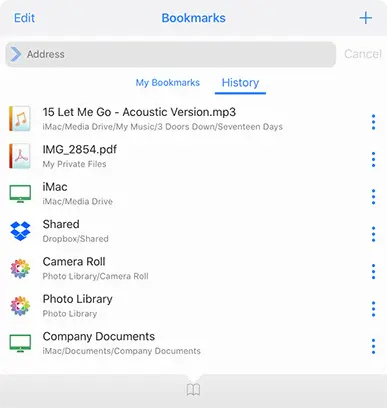
Bookmarks are a great feature of FileBrowser. You can use them in two ways: Folder Bookmarks & Document Bookmarks.
Folder Bookmarks
If you have folders on your computer that you use all the time such as My Documents, Photo Library or Movies, add a bookmark to them. These will become your shortcuts and save you time navigating through folders to get to where you want.
Create a Bookmark
Tap the Bookmark icon and tap the + icon.
You can give it a more memorable name and tap add.
Open a Bookmark
Tap the Bookmark icon and your existing Bookmarks are listed.
Just tap one and FileBrowser will connect and browse to the Bookmarked folder.
Document Bookmarks
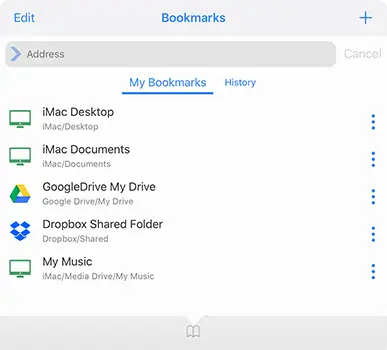
If you are reading a long PDF, whether it's a book or a presentation or a legal document, add a bookmark. When you tap that bookmark, FileBrowser will remember the location in the file and open it where you left off.
From this page you can add a Bookmark:
Tap the Bookmark icon in the toolbar
Then tap '+', for rapid navigation to this file next time.

Siri Reminders
The Siri keyword "this" will associate FileBrowser's current document or Folder with the Siri reminder.
For example simply navigate to a folder or file and say "Siri remind me of this tonight" or "Siri remind me of this when I get home" and Siri will create a reminder linked to FileBrowser's current folder or document.
PDF and Image Annotation
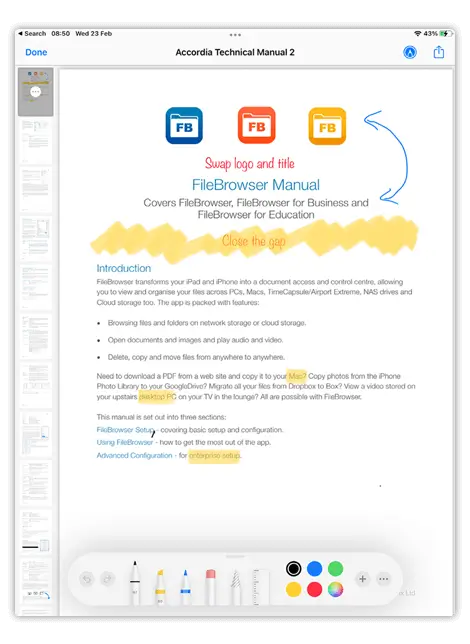
Annotate your PDFs and Images to make comments, highlight text and use the drawing tools. FileBrowser offers full support for Apple Pencil to make drawing and writing easier on iPad Pro. Once you have finished annotating your document or image FileBrowser will save the new file and keep the original as a backup.
- Tap the file context menu and select Markup
- Tap the annotate icon in the top right, this will display the annotation menu.
- You have the following tools:
- Pen
- Highlighter
- Pencil
- Eraser
- Selection Pen
- Ruler
- Text boxes
- Signature block
- Shapes
- After you have finished annotating your photo or PDF simply tap "Done".
Create Multi-Page PDFs from photos
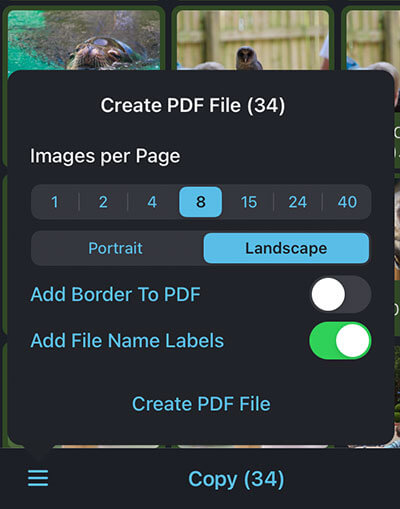
- Select multiple images in a folder then tap the menu icon (bottom left). Select "Create PDF File".
- Select the number of image you want per page.
- Select your paper orientation, portrait or landscape.
- You can also add the filenames underneath each image for easy reference.
- Tap "Create PDF File" and the new PDF will be saved into the current folder.
Comic book viewing
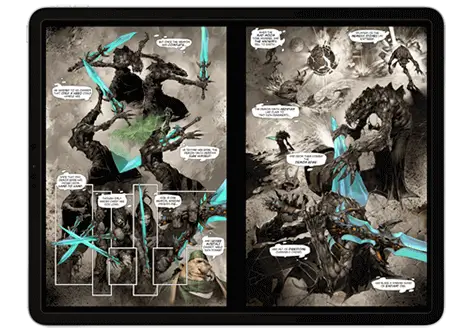
View your comics collection stored in CBR or CBZ files. View images within any ZIP or RAR file.
Simply Tap the comic file and FileBrowser will open it in the comic viewer.

Chromecast your Photos to your HDTV
To stream your images to a Chromecast device, view your image full screen and press the Airplay icon on the toolbar and select your Chromecast device.

Airplay™ your Photos to your HDTV
If you have Apple TV or AirPlay™ enabled media server such as KODI, use FileBrowser to relay your Images to your big screen. View your image full screen and press the AirPlay icon on the toolbar and select your device.

Slideshows
Create slideshows and save them for later use. You can access them from the home page of the app, simply tap "Slideshows".
To create a Slideshow do the following either:
- Tap a folder context menu and select "Create Slideshow".
This will create a slideshow of all the images inside that folder and its subfolders.
- Select multiple images, then tap the Toolbar Actions menu and select "Create Slideshow".
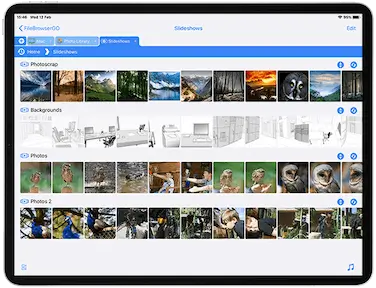
This will create a new Slideshow with only the images you have selected.
To change the delay, transitions and order in the Image Viewer tap the Actions Menu and select Slideshow Settings.
*FileBrowserGO and FileBrowser Professional feature, requires iOS10 or later
Image Viewer Actions Menu
This can be accessed on the top toolbar when viewing an image.
Image Properties
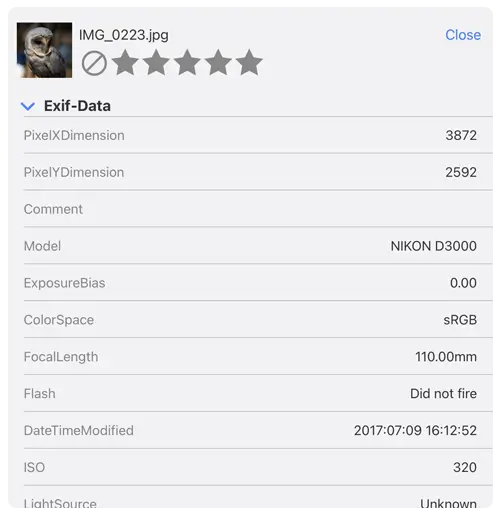
Display your image properties (EXIF data) such as dimensions, color mode, latitude, camera model etc.
Markup
Annotate your images with markers or text tools, then you can save it as a new file.
Slideshow Settings
Change delays and transitions.
How to Change Slideshow Settings
Share...
Share your file via social media such as Facebook, Twitter, or iMessage etc.
Send your image to an AirPrint device.
Email Attachment
Attach document or image to an Email, if you have a large image you will be given the option to send a smaller version of the image.
Refresh
Refresh the current view.
Accessing your iPad or iPhone's Photos
You now have access to the photos synced to your iPad or iPhone from iPhoto. Clicking the "Photo Library" heading in the left hand column will allow you to browse the built-in iOS Photo Library.
Backup your Camera Roll to your Computer or your Cloud Storage
Follow our Simple guide on how to backup your iPhone Photos or Videos without iCloud. You can even backup your photos to multiple locations for added piece of mind.
*FileBrowserGO and FileBrowser Professional featureBackup Photos to your Cloud Storage or Computer
Selecting Multiple Images
You can select multiple images in the image view by tapping the Tick button on each image. Selecting them turns the tick blue like the screenshot. When you have finished you will be returned to the folder view in edit mode where you can choose to copy or delete those images.
Zoom
When in the image viewer, a double tap will set the zoom level to 1 image pixel to 1px on the iPad / iPhone.
XMP Review
Update or create new XMP sidecar files for images and rapidly update rejection and star rate your photos.
Step 1
Select an image to enter full screen mode, then tap the 'i' information icon in the top toolbar.
Step 2
You can star rate or reject your photos using the icons in the top of the information panel.
You can also check all your EXIF data to your photographs such as Exposure time, shutter speed etc.
Tag Photos with XMP on your iPad or iPhone*FileBrowser Professional feature
Playing Movies
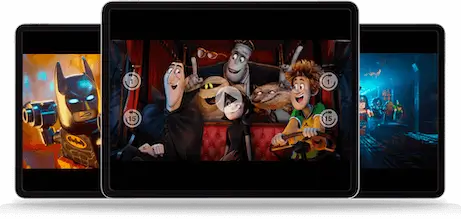
Simply tap the Movie file you want to play and it will auto start, tap the center of the screen to pause the video. Once paused you can tap anywhere on the screen to bring up the additional controls.
All video file formats supported by the iPad / iPhone can be streamed. FileBrowser also supports HD content if your WiFi network is fast enough.
DRM Protected Movies from iTunes
Apple prevent movies purchased from iTunes being streamed to non-Apple apps.
Play Music
FileBrowser can play most music file types including Hi-Res FLAC. Featuring several play modes including:

Album Mode
Play selected track and the remaining ones in the folder.

Single Mode
Selecting a track from a folder queues and plays it once.

Repeat Mode
Play selected track and all others in the folder continuously.

Shuffle Mode
Play selected track and others in the folder randomly.
Queue Tracks
You can play queue tracks to play by pressing the context menu on a track and select "Queue Audio". This will place it in the now playing queue.
Edit Track Order
Re-order queued tracks, Simply tap edit, then drag the tracks into the order you want and tap "done".
Podcasts & Audiobooks
- You can rewind or fast forward 15 secs at a time
- Speed Up and slow down track playback. Great for audiobooks.

AirPlay Music to your Alexa or AirPlay Speakers
To stream your music to your Alexa device, pair your iPad or iPhone to your Alexa device. For Chromecast or AirPlay devices, tap the icon in the music player and select your device from the list.