Step 4 - Configure FileBrowser to Connect to Your ZeroTier VPN
Configuring FileBrowser
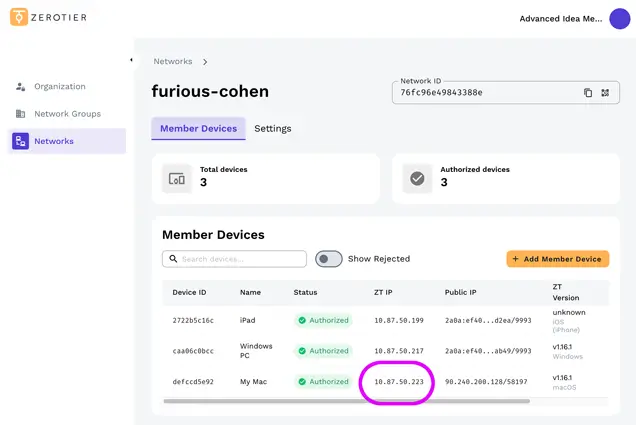
Step 1 – Select Your ZeroTier Network
In the ZeroTier account web page click the "Networks" tab and select your Network from the list. Your Mac or PC will be listed here. Make a note of the "ZT IP" Address. You will need this for FileBrowser in the next steps.
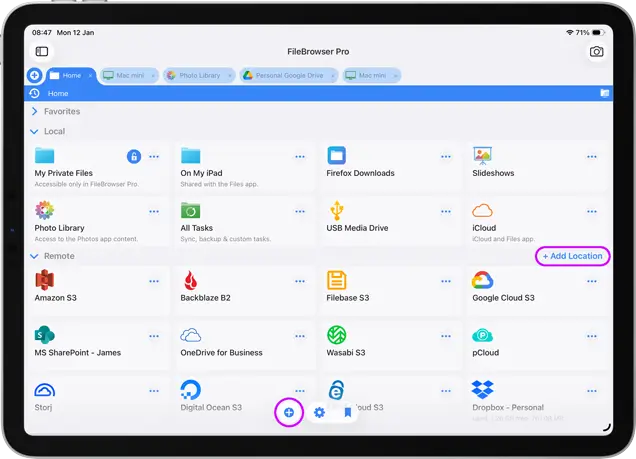
Step 2 – Open FileBrowser and Add a New Location
We recommend having a separate FileBrowser PC/Mac connection for connecting over your Zerotier VPN.
On your iPad/iPhone open FileBrowser and click "Add Location" on the homescreen.
From the connection wizard, select "Computer/Network Drive" then tap "Manual Setup". Select PC or Mac from the list of machine types.
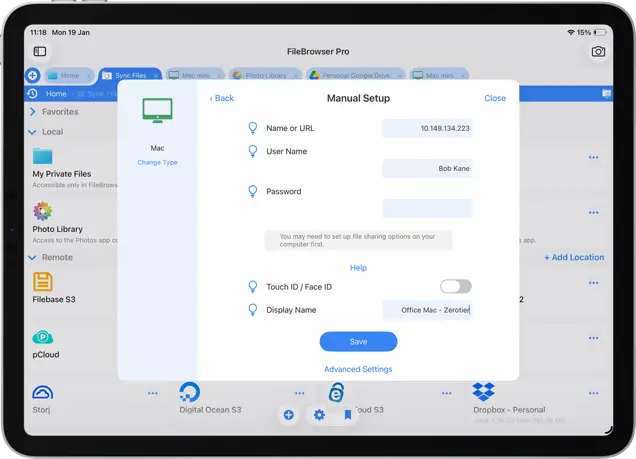
Step 3 – Choose Manual Setup
In the "Name or URL" field, enter the "ZT IP" address of your Mac or PC which you made a note of above.
In the User Name and Password fields, enter your credentials for your PC/Mac, or leave as "On demand" for FileBrowser to prompt you for credentials each time you connect.
In FileBrowser's "Display Name" field, we recommend using the same name as you gave the device on the ZeroTier Networks page and append "ZeroTier" to it so that you can easily identify it, such as "My iMac - ZeroTier", for example.
Tap "Save".
Step 4 – Connect your iPad/iPhone to your ZeroTier VPN
To connect FileBrowser to your Mac or PC while away from your home WiFi network, you will first need to connect to your ZeroTier VPN network. This can be done by either:
- launching the ZeroTier iPhone/iPad app and enable the switch to next to your network.
- Use the iOS VPN client screen in the Settings app.
Once connected you should see a VPN symbol in the top-left corner of your iPad screen. On an iPhone swipe diagonally down from the top right corner to bring up the control panel, you will see the VPN icon in here.
Step 5 - Test your Connection
The best way to test your VPN is to turn off WiFi on your iPad or iPhone and see if you can still connect to your new Mac or PC connection over cellular data.
Note: Once you have finished using FileBrowser, please disconnect the ZeroTier VPN using the ZeroTier app or the IOS VPN client screen, to minimise the amount of cellular data used.

Do you Have a Synology NAS?
If you want to connect to your Synology device over a VPN, you can use Synology’s built-in OpenVPN Server package. Follow our step-by-step guide here.
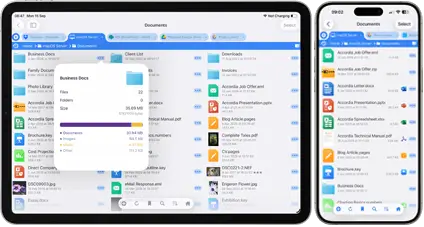
FileBrowserGO Limited Free Trial
Try FileBrowserGO with a limited free trial and securely access your files from anywhere on your iPhone or iPad. Connect over a VPN to browse, download, and manage your files just like you would at home.


Unsure which version of FileBrowser is for you? Check out our comparison page.