Access Denied when Opening a Folder on Windows 7
If FileBrowser connects to your Windows 7 PC successfully but displays an “Access Denied” error when you tap a folder, the problem is usually caused by Windows folder permissions or account access rights.
This means the shared folder is visible on the network, but the Windows account being used does not currently have permission to open or browse the folder contents.
In most cases, this can be resolved by adjusting the folder security settings in Windows.
Here are some suggestions.
Try connecting as a user with more rights.
Try connecting as Administrator.
Change folder security.
- Replace permission entries on all child objects with entries shown here that apply to child objects.
If you have connected as a Guest or user with no account, you may only have rights to see a limited number of folders or files. Using a named account should give you more access.
The Administrator account should have access to all available folders. You will need to enable this account and to give it a password. See the link below for more information.
To access the folder security controls, right-click a folder and choose 'Properties'. Then select the 'Security' tab.
If you don't see this tab it could be that 'Simple File Sharing' is enabled. See the link below for instructions on how to disable it.
The 'Security' settings tab allows you to control which users have access to shared files and folders. Common options are 'Full Control' (users may read, change and delete files) and 'Read' to limit access so files cannot be changed or removed.
If you need to reset the permissions of all files and folders within your shared folder, you can click the 'Advanced' button to find this option:
Selecting this option and clicking OK will reset all permissions to those you set in the table.
Related Topics
- How to enable the Administrator user.
- How to disable Simple File Sharing.
- I now get a different error.
About FileBrowser
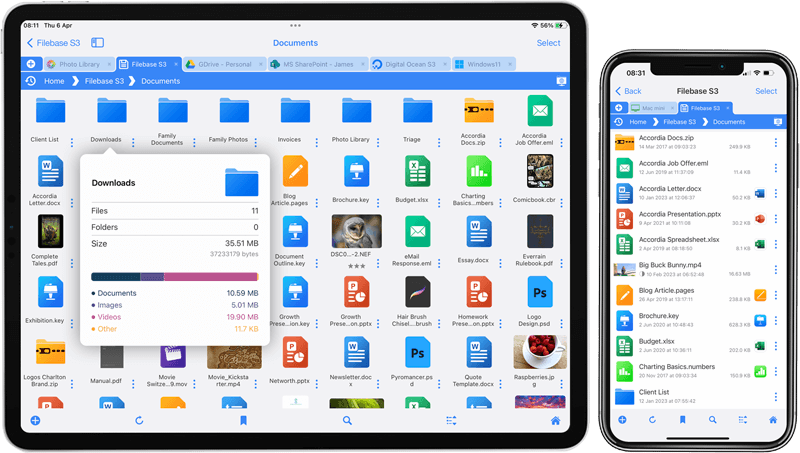
FileBrowser provides reliable access to files stored on Windows PCs, NAS drives, and other network storage devices directly from iPhone and iPad.
Whether you are connecting on a home network, office network, or VPN connection, FileBrowser is designed for fast and secure access to Windows shared folders, SMB network drives, and file servers.
Download FileBrowser
Access files on your Windows PC, network shares, and NAS drives directly from iPhone and iPad.


Unsure which version of FileBrowser is for you? Check out our comparison page.