Windows 10 Administrative Shares Not Visible Over Network
Admin shares usually have a name with a $ at the end. These can include 'C$' for example, which gives you remote access to the complete C: drive. FileBrowser shows these as "C:" instead of "C$".
You can also create your own Admin shares in Windows by giving them a name with a $ at the end when you create the share.
Enabling FileBrowser to show Admin Shares
- From FileBrowser's HomeScreen
- Tap the 'Config' icon bottom left.
- Tap 'Admin Settings'.
- Scroll down to the Settings section and tap 'Show Files'.
- Switch on 'Show Admin Shares'.
Admin shares are still not visible
Possible reasons:
- Admin shares are not available on Windows 10 Home.
- The account you used to connect with does not have Administrator privileges.
Related Topics
- Show me how to share a folder.
- I now get a different error.
- I can see my Shares but I cant access them.
I have a different version of Windows
- Windows 7 - FileBrowser does not show my Admin shares
- Windows Vista - FileBrowser does not show my Admin shares
- Windows XP - FileBrowser does not show my Admin shares
About FileBrowser
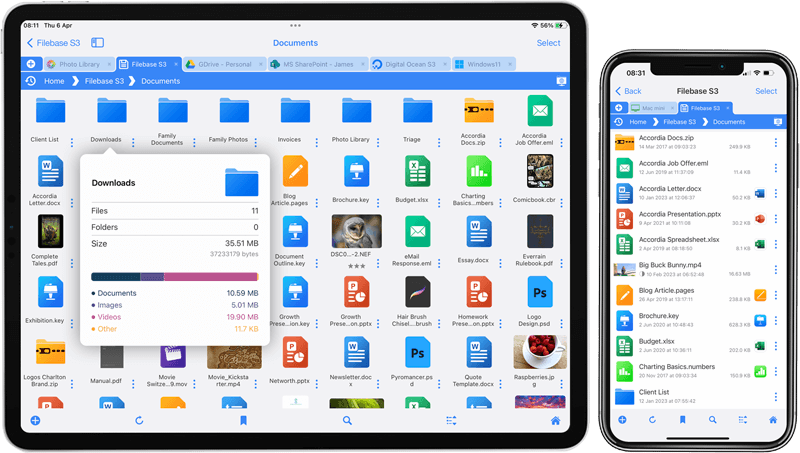
FileBrowser provides reliable access to files stored on Windows PCs, NAS drives, and other network storage devices directly from iPhone and iPad.
Whether you are connecting on a home network, office network, or VPN connection, FileBrowser is designed for fast and secure access to Windows shared folders, SMB network drives, and file servers.
Download FileBrowser
Access files on your Windows PC, network shares, and NAS drives directly from iPhone and iPad.


Unsure which version of FileBrowser is for you? Check out our comparison page.