User Guide Full Index
 Connect to...
 Navigation
File Listing Options
Navigation
File Listing Options
 Selecting and Copying Files
- File Selection Mode
- Selecting Images in the Image Viewer
- Copying Files
- Drag and Drop
- AirDrop Files
- Copy Large files with macOS Finder
- Share Files
- Copy to iOS Clipboard
- eMail Files
- Download Files Using URL
 Viewing Documents
Editing Documents
Annotate/Markup
Viewing Documents
Editing Documents
Annotate/Markup
 Bulk Rename Tools
- Bulk Rename - Add text to filenames
- Bulk Rename - Add Index or Counter
- Bulk Rename - Find and Replace
- Bulk Rename - Rename with Dates
- Bulk Rename - Rename using EXIF Data
 Search
 Creating and Editing PDFs
 Working with Images
 Playing Movies
 Playing Music
- Supported Music Types
- Play Modes
- Queueing Tracks
- Speed Up/Slow Down Playback
- AirPlay Music
- Chromecast Music
- Recording Audio into FileBrowser
 Sharing Folders
 Files App Integration
 Advanced
How to Rename Photos by Date Taken on iPhone or iPad
If you have lots of photos, the default filenames (such as IMG_1234) don’t make them easy to organise or search later. A better approach is to rename photos using the date they were taken, which is stored in the image’s EXIF metadata. In this guide, you’ll learn how to quickly batch rename photos by date taken, so you can automatically add the photo date to filenames and organise large photo collections in just a few taps.
Rename with Dates
Rename files in bulk, adding their date created property to each filename.
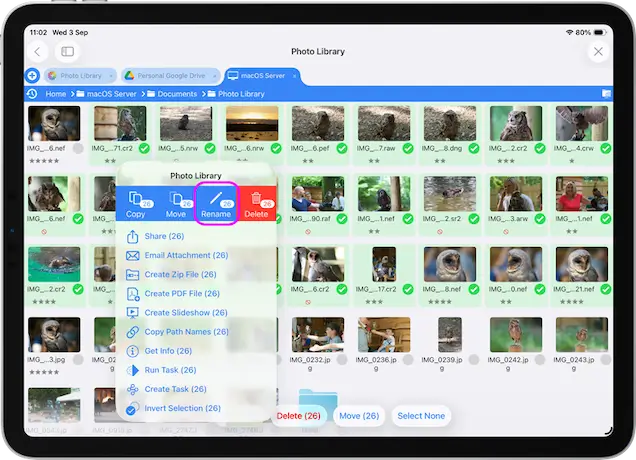
Select the files you want to rename and tap the toolbar actions icon, then select "Rename (x)" from the menu.
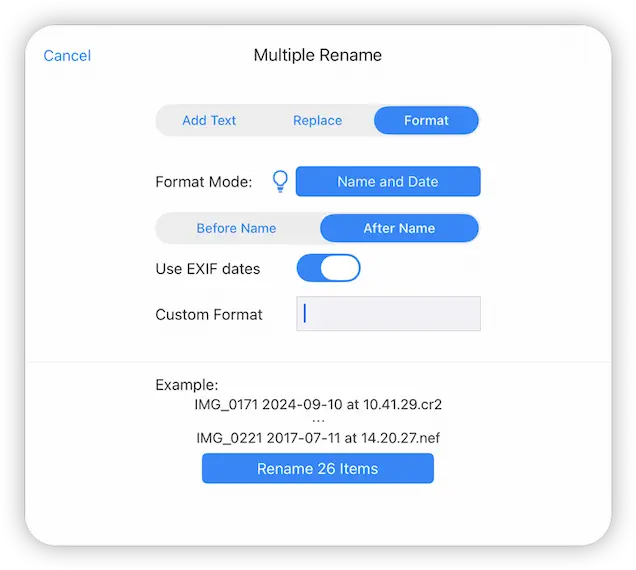
Select the "Format" tab.
Change the Format Mode to "Name and Date" and then toggle the "Use EXIF dates" switch.
You can see the example has changed to: "filename YYYY-MM-DD at HH.MM.SS". You can change this default format by entering the following codes into the Custom Format field in any order:
- DD - Day
- MM - Month
- YY - 2 Digit Year
- YYYY - 4 Digit Year
- HH - Hours
- MN - Minutes
- SS - Seconds
- FN - Original File Name
Example: FN-Time-HH.MN = DSC_0345-Time-14.34
Tap the "Rename X Items" when you are ready.