User Guide Full Index
 Connect to...
 Navigation
File Listing Options
Navigation
File Listing Options
 Selecting and Copying Files
- File Selection Mode
- Selecting Images in the Image Viewer
- Copying Files
- Drag and Drop
- AirDrop Files
- Copy Large files with macOS Finder
- Share Files
- Copy to iOS Clipboard
- eMail Files
- Download Files Using URL
 Viewing Documents
Editing Documents
Annotate/Markup
Viewing Documents
Editing Documents
Annotate/Markup
 Bulk Rename Tools
- Bulk Rename - Add text to filenames
- Bulk Rename - Add Index or Counter
- Bulk Rename - Find and Replace
- Bulk Rename - Rename with Dates
- Bulk Rename - Rename using EXIF Data
 Search
 Creating and Editing PDFs
 Working with Images
 Playing Movies
 Playing Music
- Supported Music Types
- Play Modes
- Queueing Tracks
- Speed Up/Slow Down Playback
- AirPlay Music
- Chromecast Music
- Recording Audio into FileBrowser
 Sharing Folders
 Files App Integration
 Advanced
How to Batch Rename Photos with EXIF Data on iPhone or iPad
When managing lots of photos on an iPhone or iPad, default filenames like IMG_1234 provide very little information. By using EXIF metadata, you can rename photos to include details such as the camera model, ISO, exposure, or capture date. This guide explains how to batch rename photos using EXIF data on iOS, helping you create meaningful filenames and organise large photo libraries in seconds.
Rename Using EXIF Data
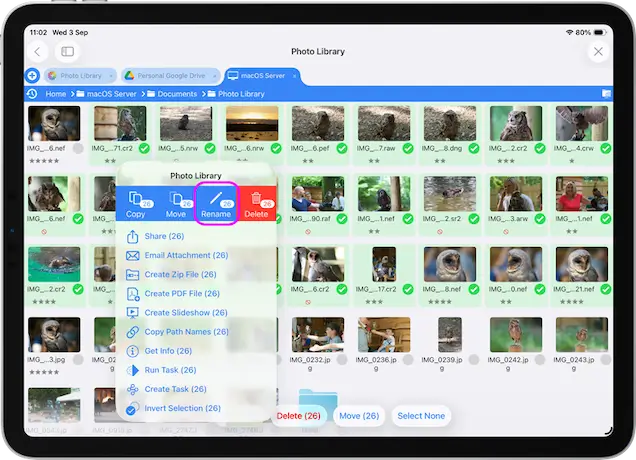
Select the files you want to rename and tap the toolbar actions icon, then select "Rename (x)" from the menu.
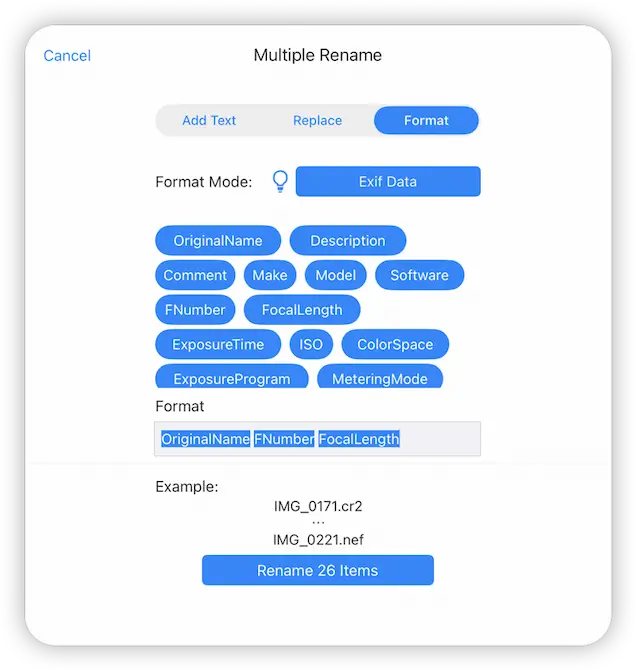
Select the "Format" tab.
Change the Format Mode to "Exif Data".
Enter into the Format input any of the following codes in any order or tap the blue buttons to add each one to the input:
Example: OriginalName-FNumber.FocalLength = DSC_0345-f4.8-140.00mm
Tap the "Rename X Items" when you are ready.
- OriginalName
- Description
- Comment
- Make
- Model
- Software
- FNumber
- FocalLength
- ExposureTime
- IOS
- ColourSpace
- ExposureProgram
- MeteringMode
- PixelXDimension
- PixelYDimension
- DD
- MM
- YYYY
- YY
- HH
- MN
- SS