User Guide Full Index
 Connect to...
- Connect to Mac
- Connect to Windows
- Connect to NAS Drives
- Connect to Cloud Storage
- USB Drives
- Map an App folder
 Navigation
File Listing Options
Navigation
File Listing Options
 Selecting and Copying Files
- File Selection Mode
- Selecting Images in the Image Viewer
- Copying Files
- Drag and Drop
- AirDrop Files
- Copy Large files with macOS Finder
- Share Files
- Copy to iOS Clipboard
- eMail Files
- Download Files Using URL
 Viewing Documents
Editing Documents
Annotate/Markup
Viewing Documents
Editing Documents
Annotate/Markup
 Bulk Rename Tools
- Bulk Rename - Add text to filenames
- Bulk Rename - Add Index or Counter
- Bulk Rename - Find and Replace
- Bulk Rename - Rename with Dates
- Bulk Rename - Rename using EXIF Data
 Search
 Creating and Editing PDFs
 Working with Images
- Rotate Images
- Convert Images
- Create Contact Sheets
- Rate Photos with XMP
- Remove GPS from Photos
- Edit IPTC Properties on Photos
- Slideshows
- - Chromecast Images
- - Airplay Photos
 Playing Movies
 Playing Music
- Supported Music Types
- Play Modes
- Queueing Tracks
- Speed Up/Slow Down Playback
- AirPlay Music
- Chromecast Music
- Cast Music to Alexa Devices
- Recording Audio into FileBrowser
 Sharing Folders
 Files App Integration
 WebDAV Server
 Sync and Backup
 Custom Tasks
- Create Custom Tasks
- Monitor a Folder for a Keyword and Download Hourly
- Download PDFs from the Last 7 Days
- Trim PDF Pages
- Change IPTC Properties on Images in Bulk
- Rotate Images in Bulk
- Automated Backup of Video Files from a Chosen Folder
- Automate Backup and Deletion of Files Older than a Chosen Date
- Remove GPS from Multiple Photos
- Convert Images in Bulk
 Advanced
- Deleted Files
- Compare Files and Folders
- Siri Reminders
- Siri Voice Shortcuts
- QR and BarCode Support
- Face ID Logins
- Kiosk Mode
- Family Sharing
- FileBrowser Professional Configuration Files
- Transfer FileBrowser Professional Settings
Configuration Files
How to Bulk Rename Files on iPhone or iPad Using Find and Replace
Renaming multiple files using your iPhone or iPad can be slow if you have to edit each filename individually. If you need to change the same text across many files — such as updating project names, dates, or version numbers — FileBrowser Professional's find and replace rename tool can do it in seconds. In this guide, you'll learn how to quickly find and replace text in filenames on iOS so you can bulk rename files and photos from your iPhone or iPad with just a few taps.
Find and Replace
Easily find and replace text in filenames for the currently selected files.
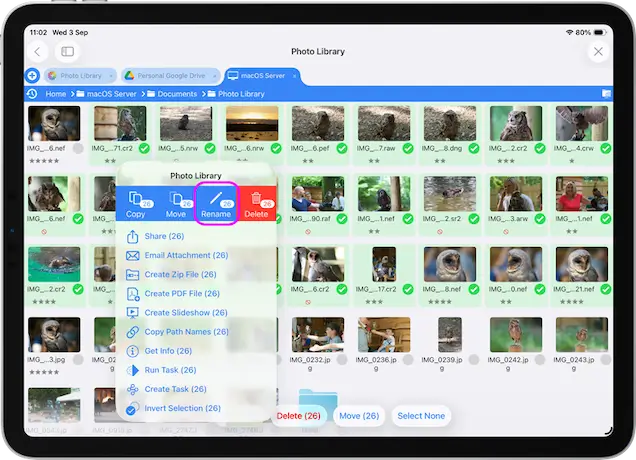
Select the files you want to rename and tap the toolbar actions icon, then select "Rename (x)" from the menu.
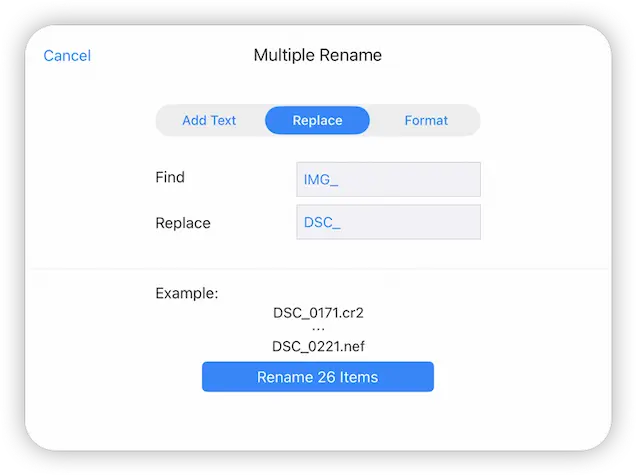
Select the "Replace" tab.
Use the Find and Replace inputs to change your filename, for example:
- Find: IMG_
- Replace: DSC_
You will see an example of the changes you are about to make before you tap the "Rename X Items" button.
Download Now